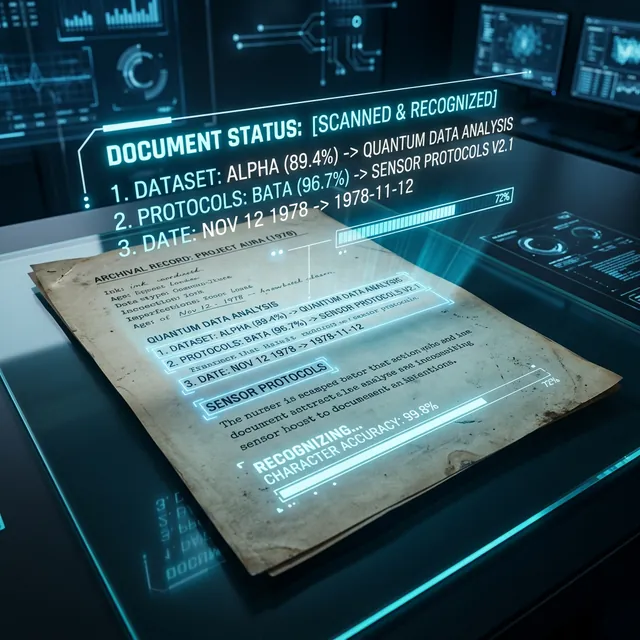
Optical Character Recognition (OCR) is the "missing link" in the journey to a paperless office. For decades, scanning a document meant creating a static image of text—a digital "picture" that you couldn't search, copy, or edit. OCR changes the game by "reading" those pixels and converting them back into machine-readable text characters. This is the cornerstone of modern digital archiving.
Why OCR Matters for Your Archives
Imagine searching for a specific receipt from three years ago. If you have 1,000 "IMG_0432.jpg" files, you'll never find it. But if you've run OCR, you can simply type "Starbucks" into your computer's search bar, and the document appears. OCR adds "intelligence" to your storage, turning a dumb hard drive into a searchable library.
The iLoveToolHub OCR Engine
Most OCR tools require massive server-side processing because the "math" behind character recognition is complex. We've optimized this process to run in the browser using Tesseract.js and WebAssembly. This means you can extract text from a sensitive legal scan without that scan ever leaving your laptop. Privacy meets high-tech utility.
3 Steps to Perfect Digital Archiving
1. Optimization at the Source
The accuracy of OCR is directly tied to the image quality. For the best results, scan your documents at 300 DPI in grayscale or black and white. If you are using a phone, ensure the page is flat and well-lit. Shadows or "curved" pages around the spine of a book are the enemies of character recognition.
2. Language and Character Set Selection
Our OCR engine supports multiple languages. If you are scanning a document in French or Hindi, ensure you select the correct language in the settings. This helps the AI understand the specific "dictionary" of the text, drastically reducing errors in character identification (like confusing an 'o' with a '0').
3. Verification and Formatting
Once the OCR is complete, our tool provides a text editor. Use this to quickly scan for "typos" caused by smudges on the original paper. You can then copy this text into a Word doc, or use it to rename your file with a descriptive, searchable title.
Advanced Use: Searchable PDFs
The ultimate form of archiving is the "Searchable PDF." This is a file that looks like the original scan but has an invisible layer of OCR text sitting behind the image. While our current tool provides raw text extraction, it's the first step in creating a fully indexed personal or professional database.
Ethical and Privacy Considerations
Archiving personal IDs, medical records, or tax returns requires extreme caution. Never use a "Free Online OCR" that requires an upload for these documents. The risk of identity theft is too high. By using iLoveToolHub's local OCR, you get the benefits of digitization with 0% of the privacy risk.
Conclusion
Digitizing your life doesn't have to be a security nightmare. With local OCR, you can convert your boxes of paper into a streamlined, searchable digital asset library. It's time to stop looking for documents and start finding them.