Reducing the size of a PDF is easy. Reducing it while keeping the text sharp and images clear is an art form. Whether you're trying to meet a strict 500KB email limit for a job application or optimizing an eBook for fast web viewing across slow mobile networks, understanding how PDF compression works is essential for the modern professional.
The Anatomy of a "Heavy" PDF
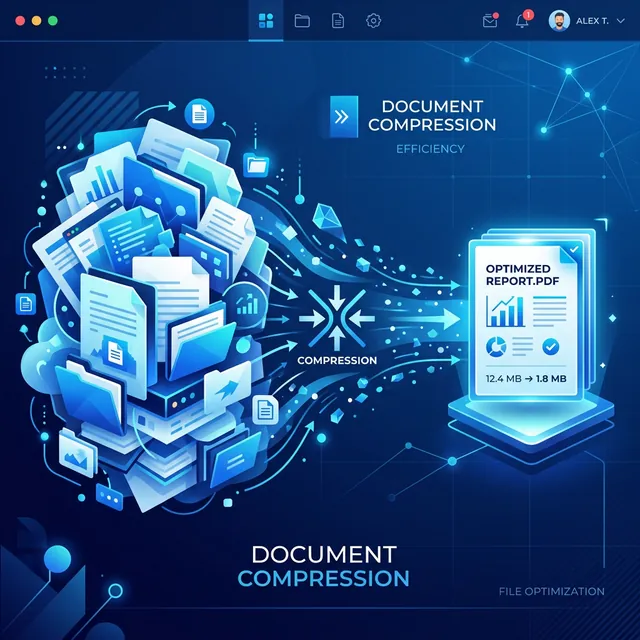
Before you can shrink a file, you must understand what is making it fat. Typically, a PDF is comprised of three main components: vector text instructions, font data, and image streams. While text takes up almost no space, high-resolution photographs and unoptimized fonts can bloat a single page to several megabytes. Many scanners set their default resolution to 600 DPI (dots per inch), which is great for printing a billboard but absolute overkill for a screen that can only display 72-96 DPI.
The Three Pillars of Great PDF Compression
Our PDF Compressor tool uses a surgical approach to reduce file size without ruining the document structure. Unlike "brute force" compressors that just lower the quality of everything, we use intelligent resampling.
1. Intelligent Image Resampling
Most PDFs are heavy because of high-resolution image streams. We analyze every JPEG or PNG embedded in your PDF and resample them to an optimal DPI for screen viewing. We don't just "compress" the image; we actually change the pixel dimensions to match what human eyes can perceive on a monitor, significantly reducing the megabyte count while maintaining visual integrity.
2. Font Subsetting and Optimization
Instead of embedding entire font families (which can include thousands of characters for every language), our processing engine strips away unused glyphs. If your document only uses "English," we remove the data for Cyrillic or Kanji characters embedded in the font. This "subsetting" can save hundreds of kilobytes per document without changing the look of a single word.
3. Structural Metadata Stripping
Software like Adobe Acrobat or Microsoft Word often adds "technical bloat"—information about the software version, edit history, hidden layers, and XML metadata. While helpful for the creator, this data is useless for the end reader. We strip this away for a clean, lean output that focuses purely on the content.
The "Sweet Spot": Understanding Quality Sliders
On iLoveToolHub, we give you a granular quality slider. But what do the numbers actually mean? For a text-heavy document like a contract, you can often go as low as 40% quality and still have perfectly sharp text. This is because text is stored as mathematical vectors, which don't degrade with compression. The quality slider primarily affects the "noise" in your images. If you have a portfolio with high-end photography, stay around 70-80%. For standard office docs, 50% is the golden ratio.
Common Pitfalls to Avoid
- Double Compression: Don't compress a PDF that has already been compressed three times. You will eventually see "artifacts" or pixelation that makes text hard to read.
- Over-Optimization: If you are planning to print the PDF on a high-end laser printer, keep the compression light. What looks good on a screen might look "muddy" on paper.
- Encrypted Files: Remember that encrypted or password-protected PDFs cannot be compressed until they are unlocked. Use our "Unlock PDF" tool first if needed.
Final Thoughts
PDF compression is a balance between file size and readability. By using a browser-side tool like iLoveToolHub, you ensure that even as you optimize your file, your sensitive data never leaves your sight. Start experimenting with different quality settings to find the perfect balance for your specific document needs.